Screenshot to Video: How to Animate a Still Image Safely
Learn screenshot to video the right way: choose the output, prep the image, redact sensitive text, and check motion before you publish.
Dropping a screenshot into a video model is the advice you'll see first. I'd ignore it until you've decided what the clip is allowed to claim.
A still from a product, a dashboard, or a support thread is often evidence. Screenshot to video can turn that still into a promo, a slide intro, or a social cut. It can also invent clicks, labels, and menus that never existed. If a viewer has to believe the action happened, a generated clip is the wrong tool.
There are three honest outputs. Record the screen. Nudge the original pixels with a zoom or a pan. Or generate new frames only after the file has been cropped and redacted on your device. Everything after that is choosing, then proving you chose well.
Table of Contents
- Choose Between a Screen Recording, a Still Animation and an AI Clip
- Prepare the Screenshot Before It Leaves Your Device
- How to Generate the Clip Step by Step
- Four Checks Before You Publish the Clip
- Fixing Warped Text, Frozen Motion and Flicker
- Label, Log and Publish the Clip
Choose Between a Screen Recording, a Still Animation and an AI Clip
Most screenshots should not become AI clips. Match the output to the job, not to whichever model is newest.
A screen recording captures what a person did. You select a region and record real clicks, typing, and pointer movement, then add a microphone, system audio, or click highlights only if the tutorial needs them. Windows, macOS, Android, and iOS include this without another app. On Android you can record a selected area and choose microphone or device audio, which the Android screen recording guide walks through. Save MP4 when you need a timeline, or GIF for a short loop. Someone has to perform the session. You can't fake that path.
A motion-enhanced still sits in the middle. A slow zoom, a pan, or a shallow parallax moves across pixels you already approved, so the interface doesn't grow new buttons. The failure is subtlety. If the move is too small, the post looks paused.
| Output | Best for | Where motion comes from | Main risk |
|---|---|---|---|
| Screen recording | Tutorials, bug reports, compliance proof | Real interactions captured live | Requires an actual session to be performed |
| Motion-enhanced still | Product teasers, social posts, slide intros | Zoom, pan or parallax on the original pixels | Looks static if the move is too subtle |
| AI reconstruction | Concept clips, ads, mood pieces | Model invents movement and new frames | Can add text, buttons or UI states that never existed |
An AI reconstruction writes frames the screenshot never contained. Use it for concept clips, ads, and mood. Don't use it as a bug report, a compliance demo, or a customer-support record. The model can write text, add controls, and show a state you never opened.
By August 2024, 39.4% of U.S. adults aged 18–64 reported having used generative AI, including tools that create video from prompts, according to the National Bureau of Economic Research. Those clips will land in feeds and decks. You still need a rule for which ones you publish.
Practical rule: Label any published synthetic clip, and keep the original screenshot as the audit reference.
Run a short test before you open a generator. If viewers must trust that an action happened, record it. If the screenshot should stay the star, animate the original pixels. If you need atmosphere and you owe nobody proof, generate.
Prepare the Screenshot Before It Leaves Your Device
The file that leaves your device is the one a remote model will study and sometimes echo in later frames. Prepare it locally.
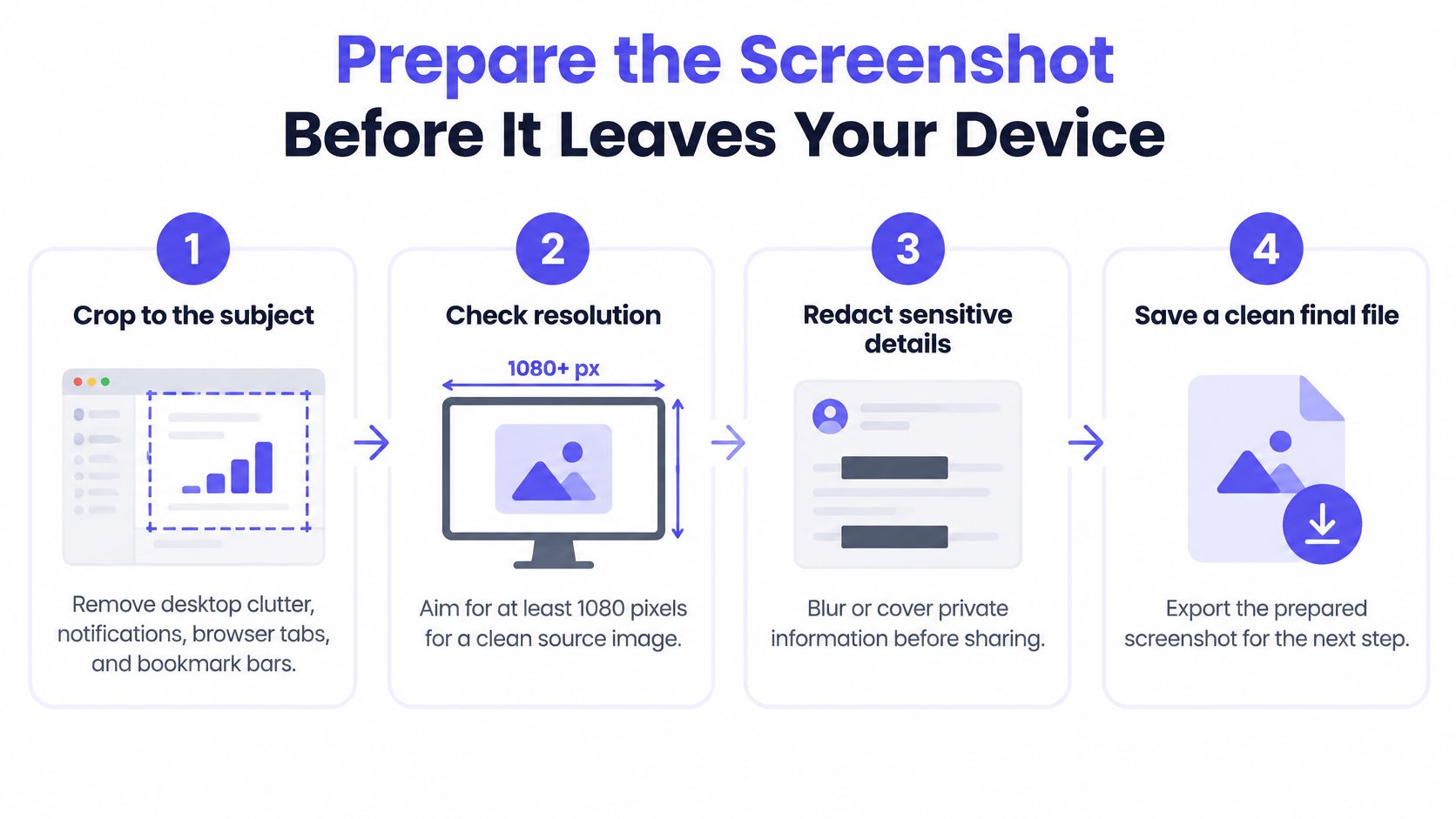
Crop to the subject. Remove desktop clutter, notifications, browser tabs, and the bookmark bar. Extra chrome gives the model more edges to warp, and it often hides a name you missed. The usual slip is a tidy window with a chat badge still in the corner.
Check resolution before you prompt. For a 1080p delivery, aim for at least 1080 pixels on the short edge. Small type and tiny icons break first, and a later upscale won't redraw those strokes. Starting from a thumbnail is the slip that costs you the most retries.
Redact, then inspect at 100 percent. Microsoft's Snipping Tool instructions explain that the tool can detect sensitive information and black it out. Treat that as a first pass. Look yourself for emails, tokens, account names, customer records, and QR codes. OCR can extract text from a screenshot, and it still misses small, blurred, handwritten, stylized, or partially obscured text. If you can read a leftover string, it's still in the file.
Cover identities you haven't cleared. Faces, meeting tiles, and third-party names need consent, and that bar isn't the same in every organization or jurisdiction. The slip is blurring one face while the participant list stays sharp.
Hash the untouched original and store it privately. You need a way to show which pixels were the source. Don't upload that raw capture as a backup.
Name one motion. Write "slow push-in toward the sidebar, background unchanged," and stop there. If the frame is the wrong shape for the channel, reframe it with a landscape photo to portrait crop so the interface isn't stretched.
The upload is the redacted file. The raw capture never leaves the machine.
Repeat the text and QR scan on the generated frames before anyone else sees them. A clean source doesn't guarantee a clean clip.
How to Generate the Clip Step by Step
A generated clip is a test, not a publish. Fix the destination, the still, and one move before you spend a queue slot.
Set the Frame Before the Prompt
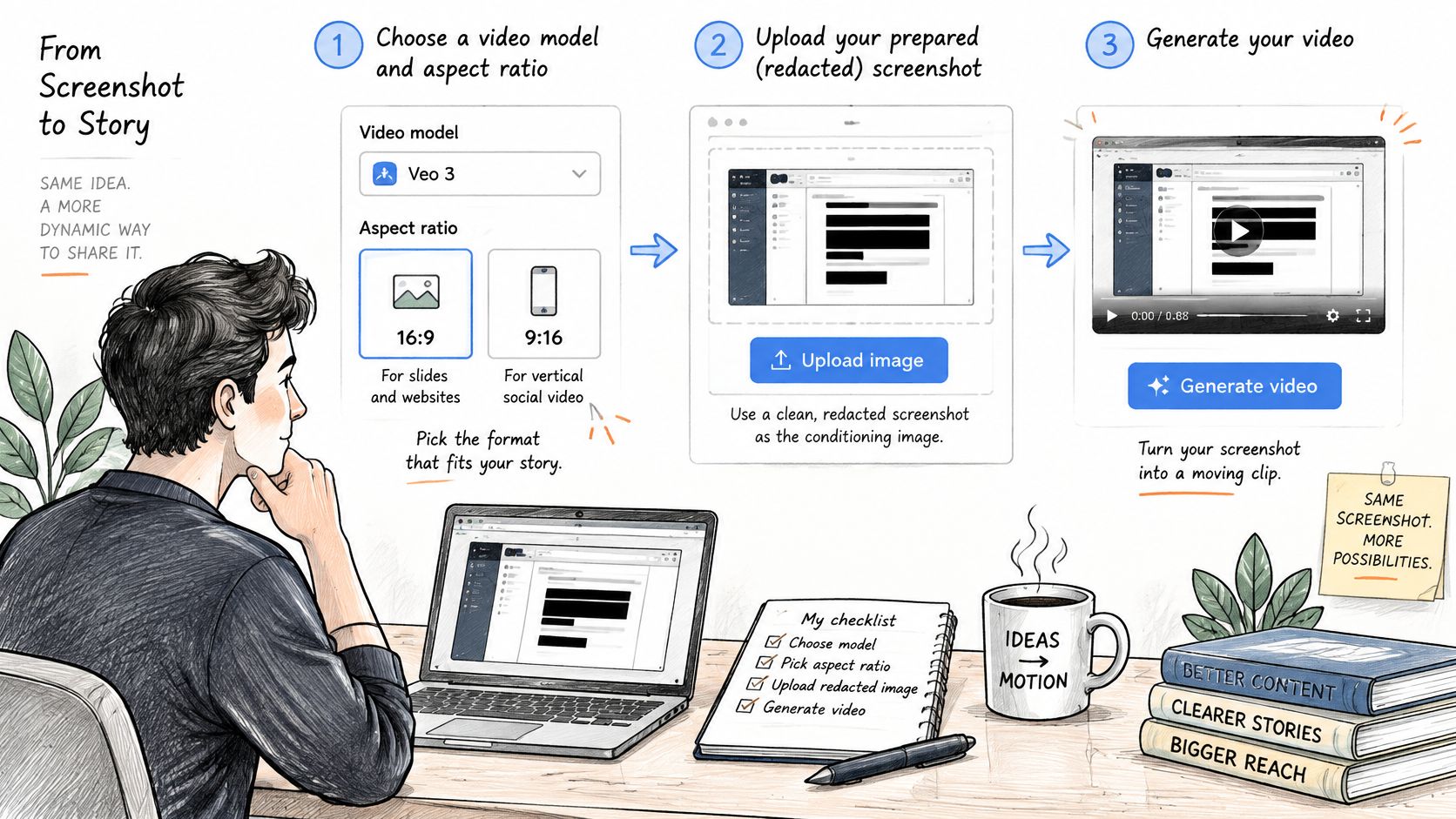
Match the ratio to the destination. Use 16:9 for slides and web pages, and 9:16 for a vertical social cut. A wrong ratio forces a crop later, and that crop can bring back edge junk you already cut. Every later compare depends on the same canvas.
Upload the redacted still as the conditioning image. That's the first frame the model has to respect. The raw capture stays on disk. If you attach the original by habit, the redaction never happened.
Write one move and one subject. Copy this and change the noun: "Slow push-in toward the settings panel, background unchanged, no new buttons or labels." Leave out new interface states unless you want them invented. Open text to video prompts are a looser job. Here the still is the constraint.
Hold the first tests to 5 seconds. A short clip shows warped type and frozen motion faster, and you can repeat it without a long render. The first candidate is rarely the one you ship.
Make three candidates with fixed dimensions, frame rate, duration, and seed when the tool allows a seed. You're comparing motion, not a pile of different settings. Change one variable on the next round.
Time your own queue. One run isn't a benchmark, so don't treat a single wait as the model's speed. Hand the job off instead of blocking the request, then come back for the file.
Log the file you keep. Write down the prompt, seed, model, ratio, and duration beside the original screenshot. Without that note you can't tell the reviewed candidate from a later lookalike.
Watch one clean pass of the same idea before you lock settings. A single move is easier to judge on screen than in a prompt box.
That pass is the shape you want: still in, one move, then a review. Your log should be able to reproduce the candidate you liked.
Four Checks Before You Publish the Clip
A clip can look smooth because it barely moves. That's the trap. High frame-to-frame agreement isn't proof that the screenshot became a video.
The AIGCBench evaluation reports adjacent-frame temporal-consistency scores of about 0.971 to 0.996 across listed systems, while similarity to a reference video sits much lower, about 0.764 to 0.823. Locally smooth frames don't guarantee faithful motion. Report dynamic degree next to consistency, or you'll keep the frozen take.
Automated screening uses four measures, and they aren't interchangeable.
- Identity, with DINO feature similarity: The subject, logo, face, or product shape should match the still on every frame. A drifting logo fails even when the grade looks pretty.
- Background, with CLIP similarity: The environment stays put unless you asked it to change. A sliding wall is a fail.
- Flicker, with mean absolute frame differences: Edges and textures shouldn't shimmer. A busy gradient usually fails here first.
- Motion, with adjacent-frame CLIP similarity plus dynamic degree: The clip should visibly do what you asked. Adjacent-frame CLIP checks coherence. Dynamic degree tells you whether anything happened.
VBench-style checks split subject consistency, background consistency, temporal flickering, and motion smoothness for the same reason. One "looks good" score hides the miss.
Smooth frames aren't a moving picture. If the dynamic degree is near zero, reject the clip.
Reject a failing candidate before you upscale or edit. Upscaling makes warped type and shimmer sharper, not smaller. Then scan every generated frame for text, QR codes, faces, or account details that weren't in the redacted still, and log that scan beside the candidate. A pass on the source isn't a pass on the output.
Fixing Warped Text, Frozen Motion and Flicker
Warped on-screen text is the failure that shows up first. Labels melt because the model redraws fine detail on every frame, not because the prompt lacked a stylish adjective.
| Symptom | Likely cause | Fix |
|---|---|---|
| Small on-screen text warps or melts | Model redraws fine detail across frames | Crop tighter, enlarge text in the source, or switch to a motion-enhanced still |
| Subject morphs or changes shape | Several motions requested at once | Name one dominant motion and regenerate with the same seed |
| Clip looks frozen | Prompt favors consistency over movement | Ask for a specific slow camera move and check dynamic degree |
| Background shimmers or flickers | Busy background or low source resolution | Simplify the background, upscale the source, then reject flawed candidates |
| Logo or UI element drifts | Unclear element boundaries in the source | Isolate the element before generating and composite it back afterwards |
Repair the Source Before the Prompt
Start with the still. A tighter crop or larger type fixes melted labels faster than another adjective. If the words must stay exact, drop back to a motion-enhanced still and stop asking a model to redraw them.
Then narrow the prompt to one motion with a direction and a rough distance. "Slow push-in, about ten percent, toward the settings panel" beats "cinematic product energy." Keep the same seed so you can see what the wording changed.
A frozen clip needs a named camera move, then a look at dynamic degree, before you spend another generation. Shimmer usually means the plate is too busy or too small. Simplify the background, or crop so you aren't demanding detail the file doesn't hold.
When a logo or a control drifts, don't prompt harder. Isolate that region, generate the move on the rest, and composite the clean element back. A new seed or a shorter duration is one regeneration. Re-cropping or re-redacting means the source is rebuilt.
Rebuild the still when the letters matter. Regenerate when only the move is wrong.
Any fix that changes text or interface content goes through the redaction check again. A cleaner prompt can still surface a string you had covered.
Label, Log and Publish the Clip
Publishing is where the evidence decision pays off. If the screenshot was a faithful recording, the clip derived from it now carries a synthetic layer, and the label plus the audit trail are what keep that difference provable.
Confirm the gate. The publish file passed identity, background, flicker, and motion, plus a frame-by-frame scan for text and QR codes.
Re-check the export at 100 percent. Trimming, upscaling, and color work write a new file. The review done on the raw download doesn't carry over.
Clear people and confidential systems. Consent and local rules still apply before a meeting recording or an internal tool goes out.
Say what the motion is. When the movement is synthetic, use a plain line in the caption or on screen: "Motion generated from a screenshot."
Keep the audit set together. The untouched original, its hash, and the generation log stay in one folder, so anyone can check the published clip against the pixels that actually left your device. A scored version is a later job.
Ship the file whose log matches the reviewed candidate. A video takes from about 30 seconds to several minutes to make. It is billed at the final price once generation completes, and the job returns a task you can poll, or a webhook that notifies the app when the file is ready.
That later job deserves the same discipline. A scored or re-edited cut starts from the labelled file and gets its own folder, hash, and log entry. Syncing a clip to a track is a separate workflow with its own assets, closer to making an AI music video than to this audit step.
Pick one screenshot today. Decide whether it should be a recording, a still animation, or a generated clip, and make one 5-second candidate.
UberLLM gives you image-to-video through one API, so a redacted screenshot can be the opening frame and you can try more than one model without a new vendor account. Usage comes off a prepaid balance, and a failed generation isn't billed. Run today's 5-second test on UberLLM.