Create a 3D Image: Methods, Steps and Fixes for 2026
Learn how to create a 3D image with AI models, photogrammetry and 3D tools, plus fixes for common problems and a usability checklist.
You've got a product photo, a rough concept, or a blank canvas, and you need an image with believable depth. The first result looks polished until you notice the floating handle, the conflicting shadows, or the fact that you can't rotate anything.
To create a 3D image, first decide whether you need a convincing picture or an actual asset. A campaign visual can succeed from a single viewpoint. A game prop, product configurator, or measured reconstruction has to survive much more than a flattering camera angle.
Table of Contents
- Choose a Method Before You Start
- Recognize the Five Depth Cues
- How to Generate a 3D-Style Image with an AI Model
- Build a Measured 3D Image from Photos
- Fixing Common Problems in Generated 3D Images
- Checking a 3D Image Before You Use It
- Test Your First Batch on a Real Model
Choose a Method Before You Start
Match the method to the deliverable, not the most impressive preview. Start by writing down what someone must do with the result: publish it, change its lighting, rotate it, animate it, or measure it.
These routes solve different problems. Their setup and processing times also depend on scene complexity, hardware, and how much correction you'll accept, so use the workload descriptions below rather than treating a turnaround estimate as a promise.
3D image methods compared by use, input and output
| Method | Best for | Input needed | Typical time | What the output is |
|---|---|---|---|---|
| AI image model (text or reference image) | Concept art, mockups, social visuals | Prompt and optional reference image | Generation plus visual review and local edits | A 3D-looking picture with no editable geometry |
| Software render (Blender or similar) | Precise product shots and animation | Modeled scene, lights and camera | Modeling, scene setup, rendering and revisions | A rendered picture backed by an editable scene |
| Photogrammetry from photos | Real objects and places, measured scans | Dense overlapping photos with consistent light | Capture, reconstruction, cleanup and scale validation | Reconstructed geometry, usable for scale after calibration |
| Neural radiance field (NeRF) | Photorealistic views within a captured scene | Diverse images of a static scene | Capture, camera estimation, training and validation | View synthesis, not automatically reliable dimensions |
For picture-only work, compare generation cost alongside the editing work each result needs. A guide to choosing a low-cost image-generation API can help you organize that comparison, but the cheapest rejected image still creates review work.
For a software render, Blender gives you direct control over geometry, materials, lights, and camera placement. That control is valuable when a product's silhouette must stay unchanged across revisions, but you'll need modeling skills or a suitable existing asset.
Decision rule: If the result only needs to look right from an approved viewpoint, an AI image or validated NeRF render may be enough. If someone will place, edit, measure, or animate the object in a scene, plan for geometry from the start.
Photogrammetry also needs a known dimension or another scale reference. Good photographs alone don't establish trustworthy real-world size.
Recognize the Five Depth Cues
A mug mockup can look like clip art until you add a highlight across its glaze and a shadow beneath its base. Those details help viewers interpret a flat picture as a solid object.
The University of Utah's computer-graphics history explains the foundations behind that illusion: modeling, visibility determination, shading, and lighting. Camera projection determines how the resulting scene appears from the chosen viewpoint.
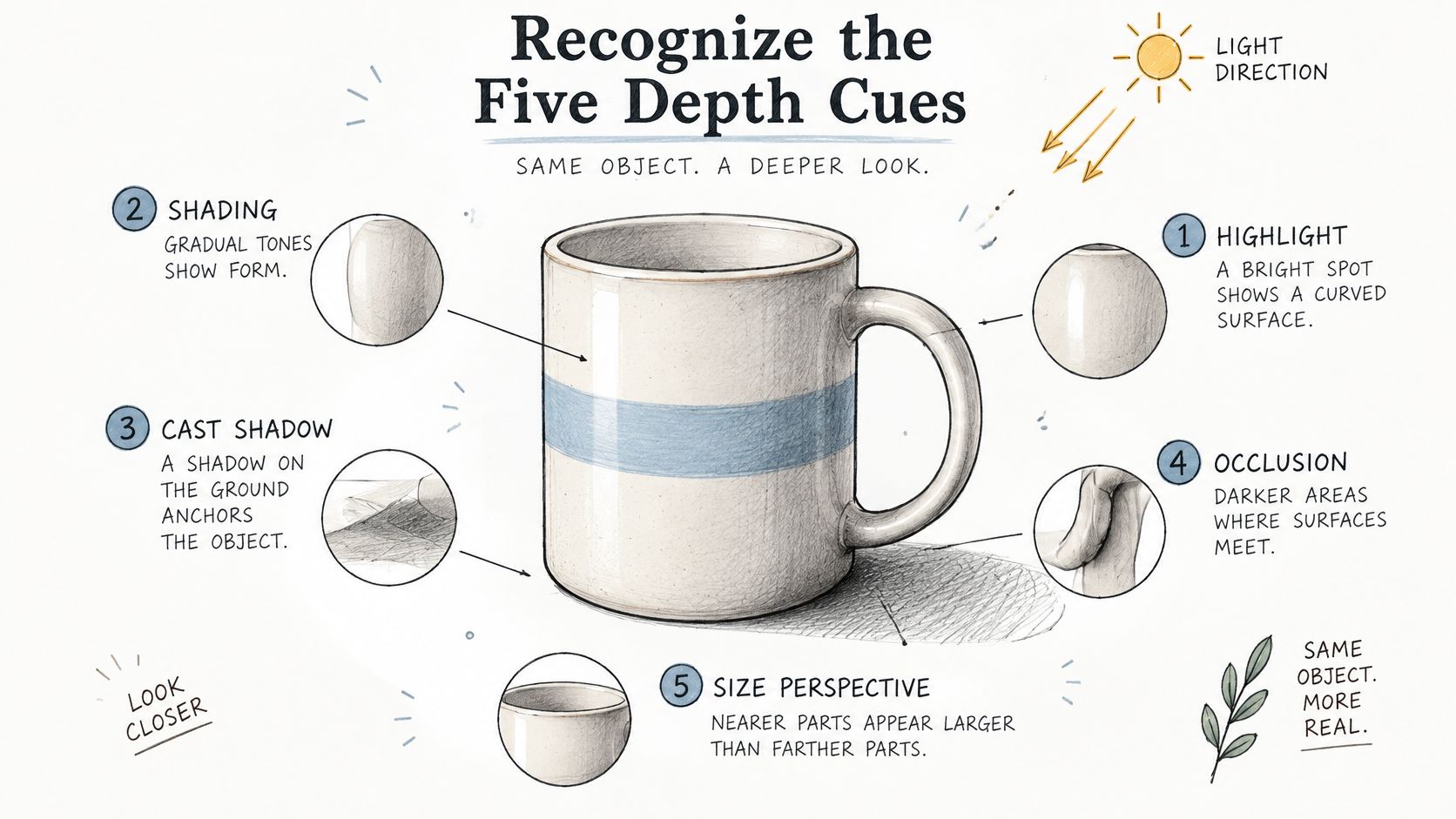
Build the mug's depth in stages. Establish its projected shape, let the handle disappear behind the body, then add shading and reflections that agree with its material.
Use this yes-or-no checklist on each candidate:
- Perspective: Do receding parallel edges converge consistently, and do circular openings read as plausible ellipses?
- Occlusion: Does the nearer surface hide the farther surface cleanly?
- Gradient shading: Does brightness change smoothly around curved surfaces?
- Light and shadow: Does the cast shadow agree with the dominant light direction and object contact?
- Specular highlights: Do reflections fit the surface finish and curvature?
A soft background can provide an optional depth cue, but blur won't repair incorrect geometry or contradictory shadows. Judge the object itself before adding atmosphere.
How to Generate a 3D-Style Image with an AI Model
Treat image generation as controlled art direction, not a search for a magic style phrase. Words such as cinematic and realistic leave important decisions unresolved unless you specify the object, material, viewpoint, and lighting.
The workflow is to establish the composition, describe its physical cues, then refine only what fails.
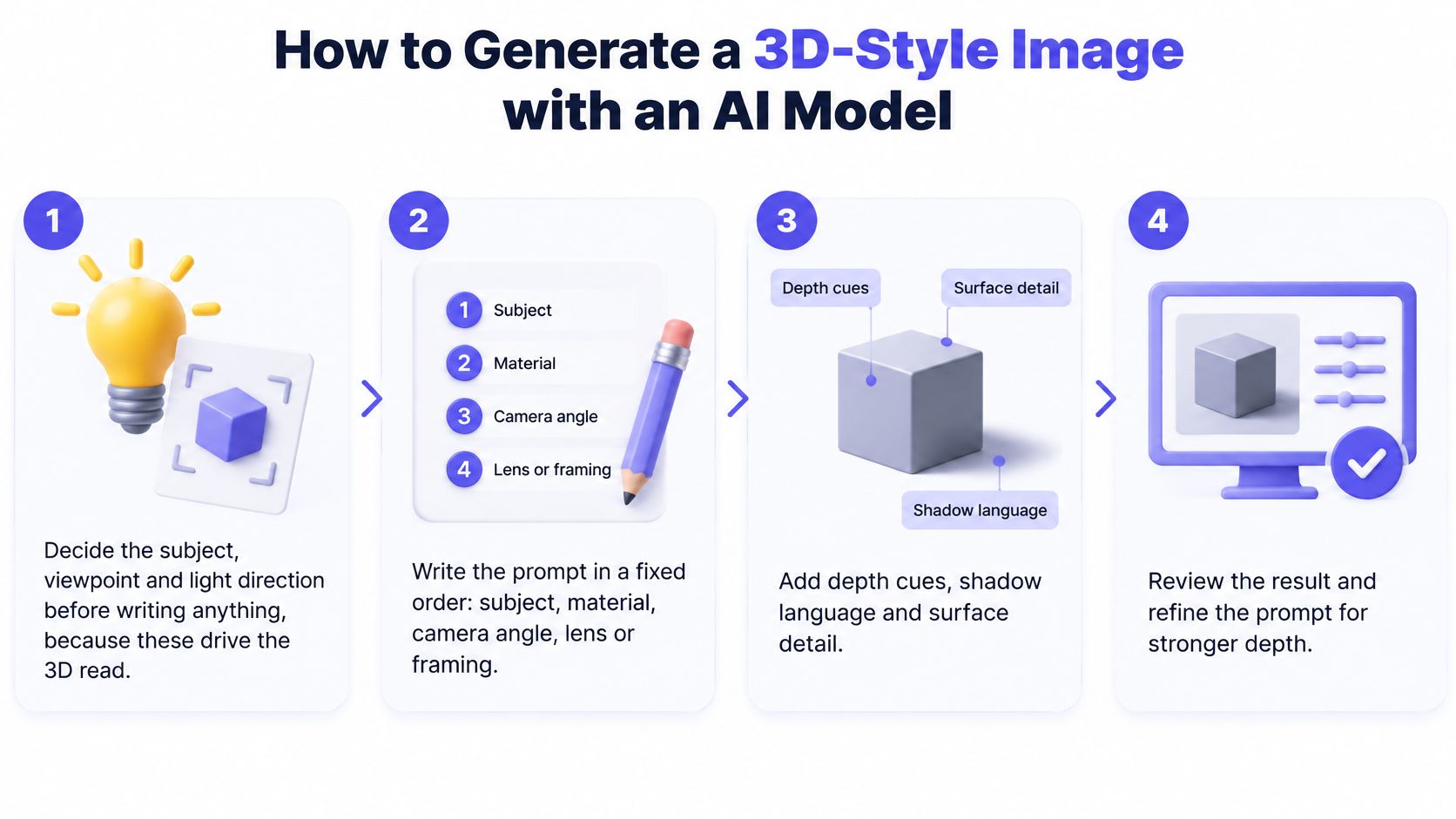
Establish a Controlled Starting Point
Decide the subject, viewpoint, and light direction before prompting. Choose a simple subject, such as a ceramic mug on a tabletop, because a clear silhouette makes structural mistakes easier to detect. Decide whether the viewer should see inside the mug and which side should receive the key light.
Write the prompt in a fixed order so revisions stay traceable. Use subject, material, camera angle, framing, and lighting, rather than mixing contradictory instructions throughout a long paragraph. For example: A single cream ceramic mug with a rounded handle, satin glaze, three-quarter view slightly above the rim, centered product framing, soft key light from the upper left, gentle shading across the body, and a grounded cast shadow on a matte gray tabletop.
Test the unchanged prompt on two image models to compare their interpretation fairly. Keep the aspect ratio and requested output size aligned, and attach the same reference where supported. A shared text, image, and video API workflow can simplify the integration, but model-specific controls still need to be recorded separately.
Generate four variants at one aspect ratio to compare composition without introducing another variable. Keep the background and camera instructions unchanged for this trial. Don't choose by surface detail alone, because an attractive glaze can distract you from a malformed opening or handle.
Review Before You Refine
Score each variant against the depth checklist so selection isn't just a preference vote. Inspect the rim ellipse, handle attachment, shadow contact, and transition from light to shade. Reject an impossible silhouette even when its lighting looks convincing, and examine candidates at their intended display size as well as enlarged.
Inpaint a small defect rather than regenerating an otherwise usable form. Mask the damaged handle junction or broken shadow, leaving enough neighboring surface for continuity. If the whole body is asymmetric or the viewpoint is wrong, regenerate instead, because a local patch won't correct a global construction error.
Export for the actual destination and preserve the generation record. Check the image in the page, slide, or application where it will appear, since cropping and compression can remove useful edge separation. Save the prompt, model identifier, reference file, aspect ratio, settings, and seed when available; these support comparison and reruns, though they don't guarantee identical output.
Keep a rejected example beside the selected image. A short note such as handle merges into body is more useful for the next iteration than looks less realistic.
Build a Measured 3D Image from Photos
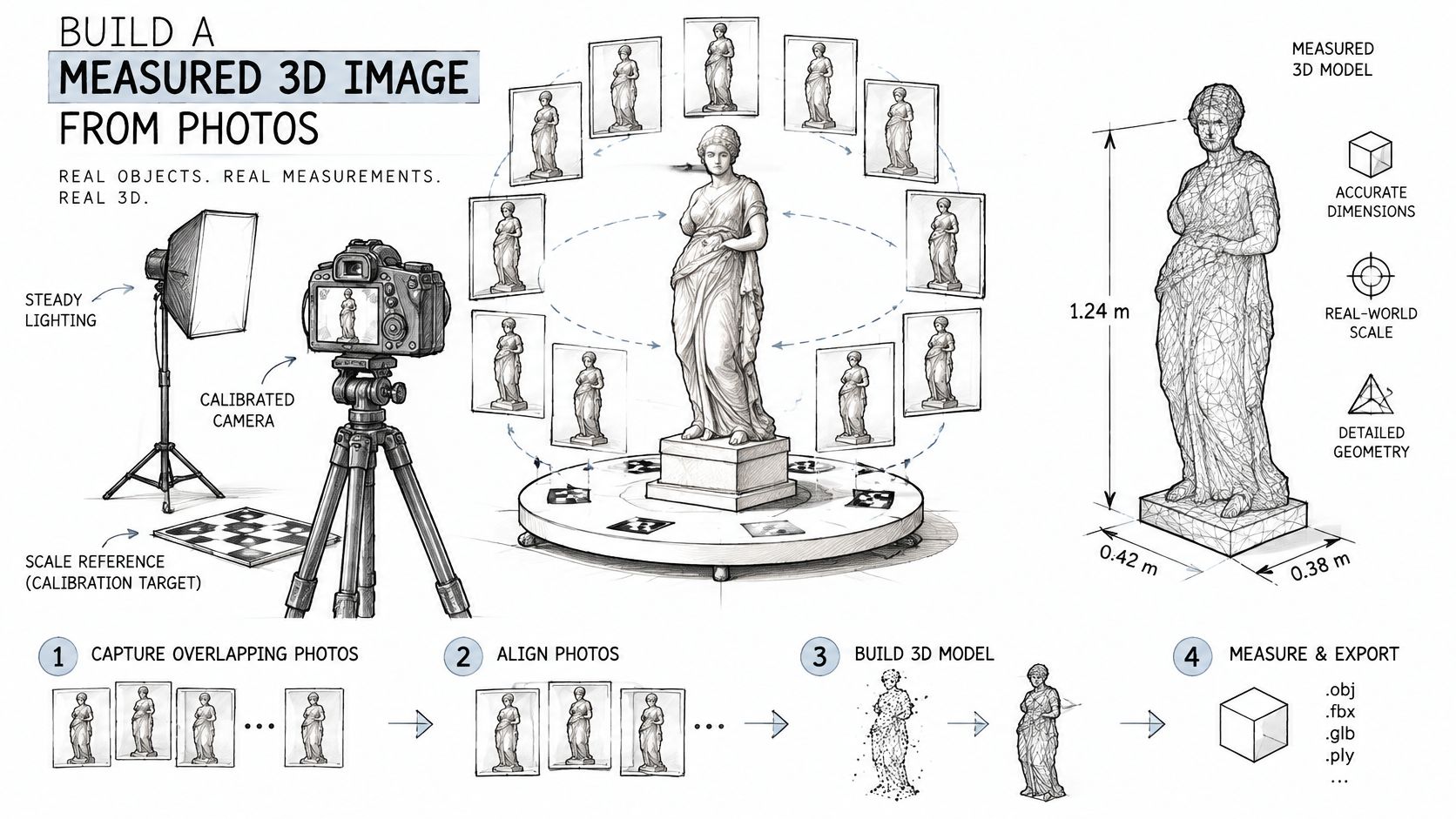
Capture substantial overlap, stable lighting, and a motionless subject before worrying about reconstruction settings. The COLMAP evaluation describes sharply degraded performance below roughly 40% overlap, a warning threshold rather than a recommended capture target.
Plan enough redundancy that the software can recognize the same surface features from neighboring viewpoints. This illustration shows how those overlapping observations contribute to a shared reconstruction.
Capture Evidence the Software Can Match
Move around the object while maintaining coverage of its sides, top, and accessible recesses. Lock exposure and focus where practical, avoid motion blur, and include a scale bar or independently measured distance.
Inspect photographs before processing. Reject blurred frames, moving subjects, exposure shifts, and sequences with large viewpoint gaps; reflective, transparent, and textureless surfaces need special care because their visible appearance may not provide stable matching features.
A shiny metal kettle is therefore a harder capture subject than a textured stone ornament. Don't assume a successful camera alignment means the kettle's reflective surfaces have been reconstructed correctly.
Understand the Reconstruction Sequence
- Feature extraction and matching: The software finds recognizable image details and associates them across photographs. Weak or false matches can leave portions of the sequence disconnected.
- Structure-from-Motion: Incremental SfM estimates camera poses and builds a sparse point cloud. Inspect the recovered camera positions for jumps, missing views, or implausible arrangements.
- Bundle adjustment: The solver refines camera and point estimates to reduce reprojection error. Check residuals and outlier observations rather than treating completion as proof of accuracy.
- Multi-view stereo: MVS estimates denser geometry from the aligned images. Inspect the resulting surface before meshing, texturing, or simplifying it for delivery.
For a visual walkthrough of the process, use the following demonstration alongside your own capture checks.
Reprojection error is a diagnostic, not a dimensional certificate. It tells you how closely reconstructed points project back onto their observed image locations, but it doesn't independently confirm physical scale or the accuracy of an unseen surface.
Validate known distances after reconstruction, then inspect holes, thin edges, undersides, and shadowed recesses. Apply the depth-cue check to the rendered preview, but use measurements and geometric inspection to accept the scan itself.
A plausible textured surface can hide a warped mesh. Switch off the texture and inspect the silhouette before approving a measured reconstruction.
Fixing Common Problems in Generated 3D Images
A flat, clip-art appearance is a useful first diagnostic because it usually exposes missing lighting or material instructions. Start with the simplest correction that addresses the visible cause, rather than adding more style adjectives.
Separate appearance defects from structural defects. A weak highlight may need another prompt pass; an unstable reconstruction can require new source photographs.
Symptoms, likely causes and fixes for 3D-style images
| Symptom | Likely cause | Fix |
|---|---|---|
| Flat, clip-art look | No falloff or highlights in the prompt | Add material and light terms, then request a soft gradient across the form |
| Two conflicting shadows | Two light directions in the prompt | Name one key light direction and remove the second light term |
| Edges melt into background | Weak separation between subject and scene | Add a clear background and a restrained rim light term, then regenerate |
| Curved parts look warped | Model drift on rigid shapes | Use a reference image of the same object and inpaint only the warped area |
| Floating or duplicated parts | Object counted twice or unstable scene | Reduce subject count in the prompt, or check the source sequence for motion |
| Correct light, wrong shape (NeRF) | Appearance learned instead of geometry | Recapture with more viewpoints, and use photogrammetry for measurements |
When a Better Render Still Has the Wrong Shape
NeRF can reproduce appearance without recovering dependable surfaces. In an aerial comparison published in the International Journal of Data Science and Analytics, NeRF had mean errors of 1.439 m and 0.923 m on the evaluated sites, so don't use a convincing camera-facing render as measurement evidence.
For neural scenes, validate withheld viewpoints and inspect any exported mesh. Viewpoint gaps, moving objects, and inconsistent illumination generally need capture or training changes, not image retouching.
Prompt-level shading issues are reasonable candidates for a single retry, though success isn't guaranteed. Global shape errors call for rebuilding the scene, strengthening reference constraints, or recapturing.
Also distinguish generation defects from layout damage. When adapting an approved composition, a landscape-to-portrait workflow can help preserve the subject rather than cropping away its contact shadow or cutting through its silhouette.
Checking a 3D Image Before You Use It
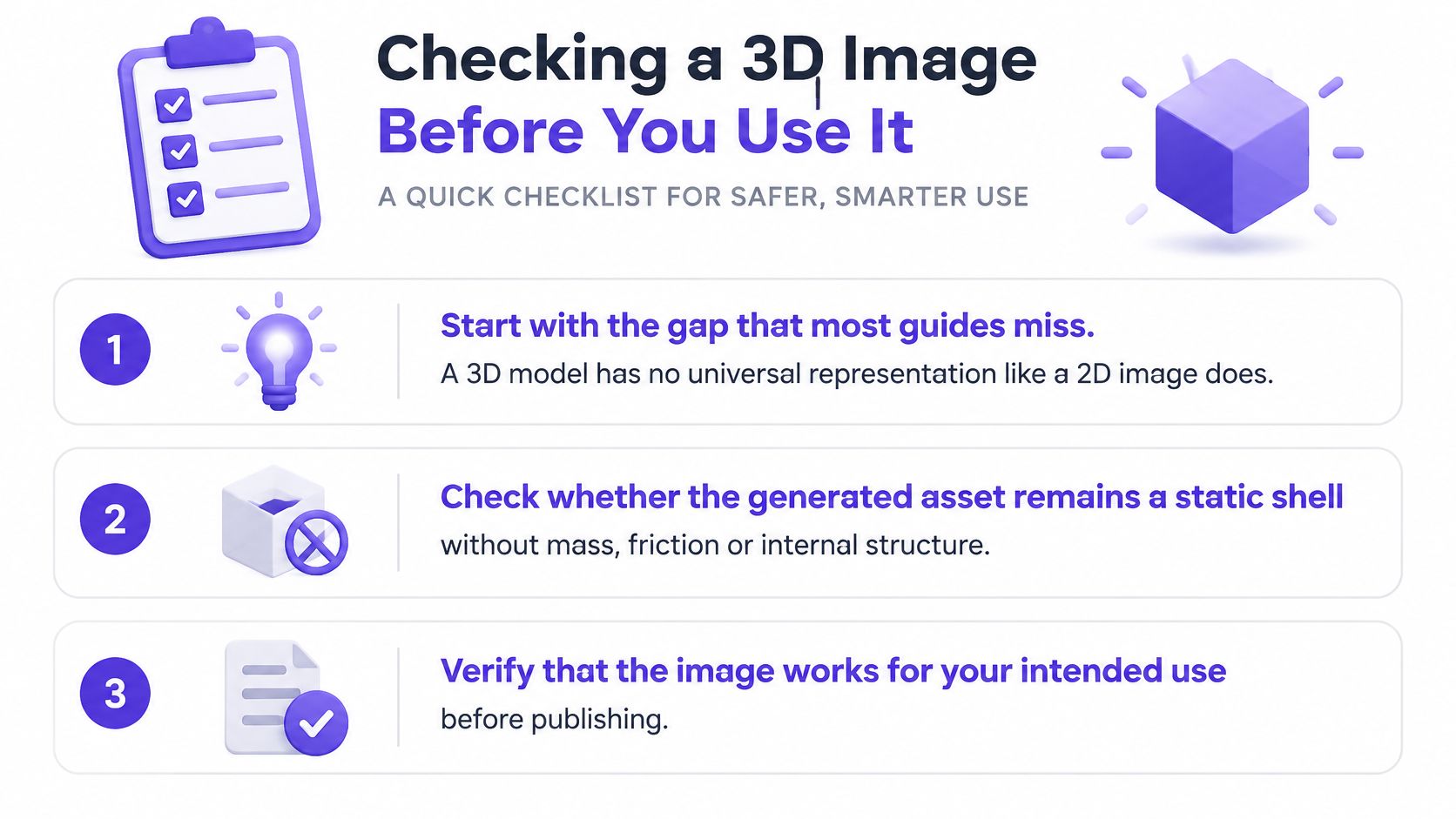
A good-looking image isn't a finished asset. The 3D-generation paper hosted on alphaXiv highlights representation and usability gaps, including generated objects that remain static shells rather than assets with physical properties or animation-ready structure.
There isn't a universal 3D representation that preserves every application's geometry, materials, rigging, and physics behavior. Faster generation can therefore increase cleanup work if a team approves many attractive variants before testing any of them.
Run Acceptance Checks in Delivery Order
- Geometry integrity: Check for watertight geometry where a closed volume is required, manifold surfaces, correct normals, and unwanted internal faces. Open surfaces can be intentional, but they must match the use case.
- Polygon budget: Set the budget for the target device and scene, then simplify while checking silhouette and shading. Animation also needs topology that deforms predictably.
- UVs and textures: Inspect seams, stretching, material assignments, and texture resolution at the intended screen size. More texture detail won't repair poor UV layout.
- Dimensions and pivot: Verify real-world units and known measurements, then place the pivot at the intended base, center, hinge, or rotation point.
- Naming and packaging: Use consistent object and material names, include required textures, and choose the export format the receiving application supports.
- Runtime behavior: Import into Blender, Unity, Unreal, or the actual destination. Test materials, transparency, collision geometry, rigging, and animation where required.
These checks apply across games, e-commerce, architecture, manufacturing, and education, but acceptance criteria differ. A product viewer may prioritize materials and rotation, while a manufacturing workflow requires a much stricter definition of valid geometry.
Automate file, scale, texture, and naming checks where practical, then reserve visual review for defects a script won't reliably judge. A result that passes the picture check can still fail every relevant asset check.
Test Your First Batch on a Real Model
Choose a real deliverable, not an open-ended style experiment. For concept art or a mockup, run an unchanged prompt across two image models at the same aspect ratio and compare the depth cues rather than decorative detail.
For dimension-sensitive work, capture a real object with photogrammetry and verify a known distance. For an editable asset, move a candidate through acceptance testing and into the destination application before expanding production.
Keep the Trial Traceable
Record the model name, prompt, settings, reference images, and rejection reason for each run. In an application workflow, image and video jobs return a task you can poll, or you can configure a webhook to notify the app when the result is ready.
Start by generating four variants, score their depth cues, and keep the strongest candidate for the relevant delivery checklist. Don't label a passing picture as a finished asset unless the underlying geometry has also passed its intended-use tests.
We offer image models through a unified API, so you can compare candidates without building a separate integration for every model. Visit UberLLM to run your first controlled batch, retain the generation settings, and connect completed results to your review workflow.