Change Landscape Photo to Portrait: Crop, Pad or Extend
Learn how to change landscape photo to portrait without losing the subject, when to crop, pad or extend, and how to check AI edits.
You've got a wide photo that works perfectly on desktop, and now you need it tall for a feed, a story cover, or a print. You drag the corners, the subject slides off center, and suddenly a head, a hand, or half the group is gone. That's not a tool problem. It's arithmetic.
When you change a wide photo to portrait, you're not just resizing. You're deciding what part of the frame earns the space that remains, what can sit in empty margins, and what, if anything, you're willing to invent. I'd start with that loss in plain numbers, then pick crop, padding, or generative extension based on what your photo can't afford to lose.
Table of Contents
- How Much of the Frame Survives a Portrait Crop
- Choosing Between Cropping, Padding and Extending
- How to Reframe Your Photo Step by Step
- How to Extend the Canvas With Generative Outpainting
- Checking an AI-Extended Image Before You Publish
How Much of the Frame Survives a Portrait Crop
Say you've got a social image at 1080 × 566 pixels and you need a 4:5 portrait at 1080 × 1350 pixels. Keeping the width means adding 784 pixels of height, approximately 139% more, and the InstaSize Instagram post size guide frames 1.91:1 at 1080 × 566 pixels against 4:5 at 1080 × 1350 pixels exactly this way.
Your source doesn't contain those extra vertical pixels. Simple resizing can't conjure them, so you have three real options. You can crop the sides, add background space above and below, or generate new content to fill the gap.
The crop arithmetic
Hold the original 566-pixel height constant and crop that 1.91:1 frame down to 4:5. Your usable width falls from 1080 pixels to approximately 453 pixels, which means about 58% of the original horizontal field of view is removed. That is the cost before you've made a single creative choice.
| Source Ratio | Target Ratio | Width Kept | What Usually Gets Lost |
|---|---|---|---|
| 4:3 | 4:5 | 60% | Side space; subject usually survives |
| 3:2 | 4:5 | 53% | Edges of the scene; check hands and heads near sides |
| 16:9 | 4:5 | 45% | Horizon context and secondary subjects |
| 1.91:1 social banner | 4:5 | 42% | Most of the scene outside the central subject |
| 16:9 | 9:16 | 32% | Almost everything except a central subject |
Read the table as a survival test, not a size chart. The lower the percentage, the harder the crop has to choose, and the more likely a person near an edge, a sign, or a second subject gets cut. A center crop is blind to all of that. Subject-aware reframing at least shifts the window toward faces and salient objects before it commits.
Quick test: If your subject fits inside the middle 45% of the width, a straight crop is viable. If it spans wider or touches an edge, don't force it.
That distinction matters. Resizing changes pixel dimensions. Reframing changes the composition itself, and composition is where the damage happens.
Choosing Between Cropping, Padding and Extending
The right method depends on what the photo cannot lose, not on which button fills the frame fastest. Converting a 16:9 image to a 4:5 portrait crop can retain only about 45% of the original width at the same height, and the Instagram post size guide covering crop, padding, and AI extension choices makes the point that a wide scene or group photograph may lose its purpose when forced into a tall frame.
My rule is simple. Crop when the subject is central and separable from its background. Pad with a blurred, gradient, branded, or plain background when the full scene carries the meaning. Extend generatively only when invented scenery is an acceptable change. Never stretch. Stretching isn't a neutral shortcut, it visibly distorts people, buildings, and anything round.
| Photo Type | Best Approach | Main Risk | Acceptable Change |
|---|---|---|---|
| Portrait or single centered subject | Crop around the subject | Clipped limbs or edges | Loss of background only |
| Product with readable label or packaging | Tight crop or plain padding | Altered text if generated | Background only; no invented label text |
| Wide landscape, horizon or group shot | Blurred or gradient padding | Visible frame or boxed look | Empty margins; no invented scenery |
| Sky, water or plain wall backgrounds | Generative extension | Repeated texture or warped horizon | Invented scenery is acceptable |
| News, documentary or archival image | Padding only, never generation | Boxed-in look | No change to content |
Two calls I would make without hesitation
Say you're converting an ecommerce shot and the product label has to stay readable. A tight crop or clean plain pad beats generation every time, because a model that redraws packaging can also redraw the words on it. If cost is what's pushing you toward generation anyway, compare your options first with a guide to the cheapest image generation API routes rather than letting price pick the method for you.
Now take a wide family photo with people standing shoulder to shoulder. Cutting the sides doesn't tighten that composition; it removes relatives. A blurred pad keeps everyone in frame and looks intentional. Journalism, documentary, and archival work sit further in the same direction. Invented content doesn't belong there at all, even when it looks natural.
Find the row that matches your photo. If you can't accept what's in the final column, that method is wrong for you, however tidy the result looks.
How to Reframe Your Photo Step by Step
A crop works when you control where it lands instead of accepting the default center. The steps below follow the production order that keeps you out of trouble, whether you're in Photoshop, a phone editor, or a browser tool.
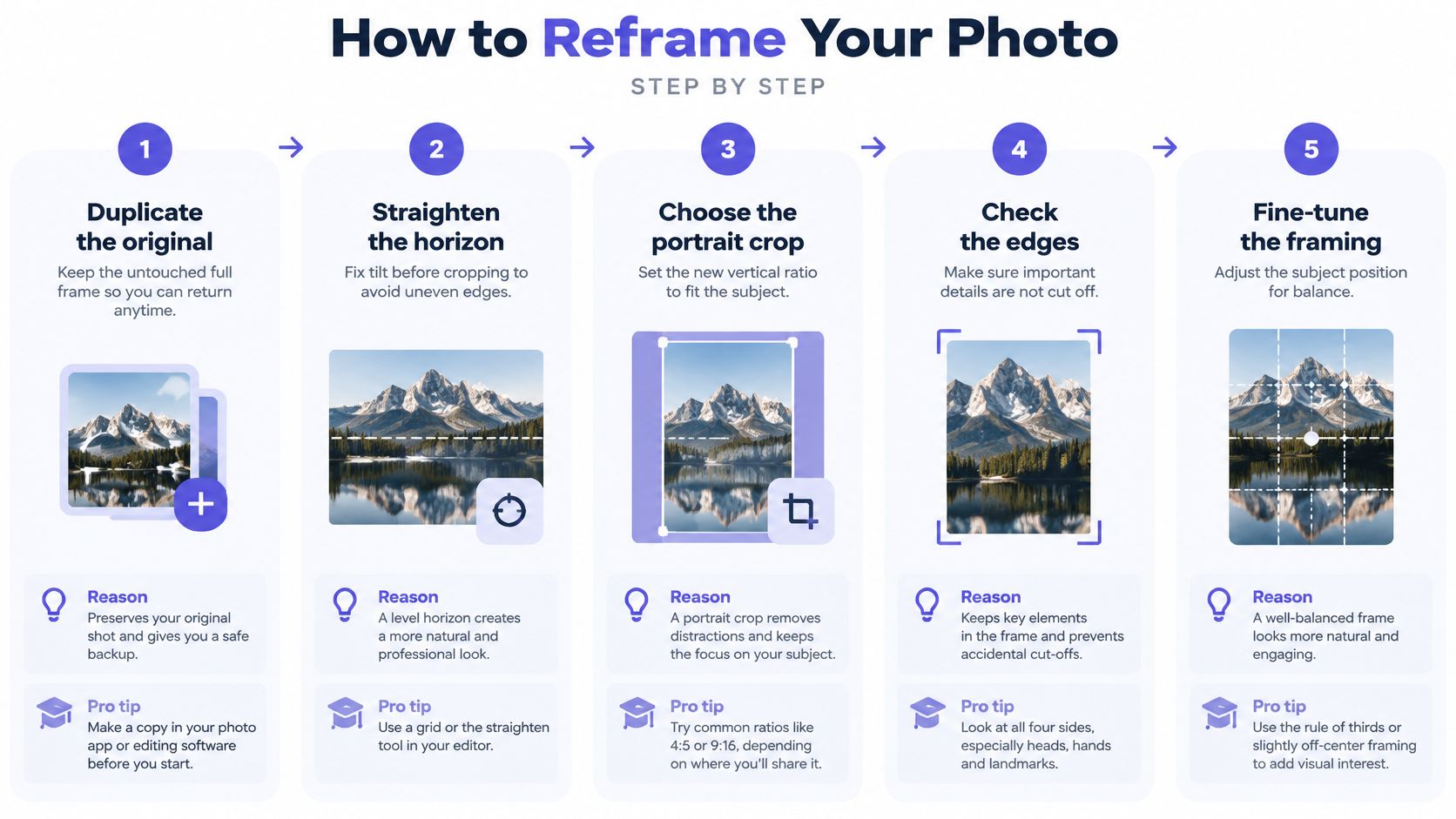
- Duplicate the original and leave it untouched. Work on the copy so you can always return to the full frame. Skipping this is how a test crop becomes permanent.
- Straighten the horizon before you crop. A slight tilt that nobody noticed in a wide frame becomes obvious in a tall one, and fixing it after cropping steals more edge pixels.
- Set an explicit target ratio. Use 4:5 for most feed posts and 3:4 for many print sizes. As Adobe's portrait versus landscape guide documents, Photoshop can rotate the crop ratio from wide to portrait and lets you move the image within the crop frame, which beats dragging corners freehand.
- Place the focal point deliberately. Enable a face or subject-aware crop if your editor offers one, then drag the frame so faces and hands sit in the central or upper-middle region. Cropping is most reliable there.
- Inspect every edge at 100% zoom. Look specifically for clipped heads, hands, wheels, and horizon ends. What looks fine at fit-to-screen often isn't.
- Make a second crop when the subject sits near an edge. Shift the focal point, export both, and compare them side by side. One version usually gives up background, the other gives up context, and you should choose consciously.
- Resize with width and height linked. Unlinked, nonuniform scaling stretches faces, buildings, and circular objects. If the proportions drift, the edit announces itself.
- Export a sharpened copy at the final display size. Then check it in a phone-sized preview, since that's where most viewers will judge it.
What a good result looks like
Phone and browser editors follow the same logic. Set the crop ratio to 4:5 or 3:4, drag the frame over the subject, check every edge at full zoom, and save a copy. Keep the original file in every app, no exceptions.
A good reframe fills the frame with the subject, clips nothing that matters at an edge, and keeps proportions identical to the original.
If you can't say all three of those things, the crop isn't finished. Either reposition it or admit the photo needs padding or extension instead.
How to Extend the Canvas With Generative Outpainting
Outpainting earns its risk in one situation. The composition depends on wide context, a crop would cut that context, and you don't want visible margins. If the wide context doesn't matter, crop or pad and stop there.
The diagram below shows the basic geometry of expanding a canvas while leaving the original pixels in place.
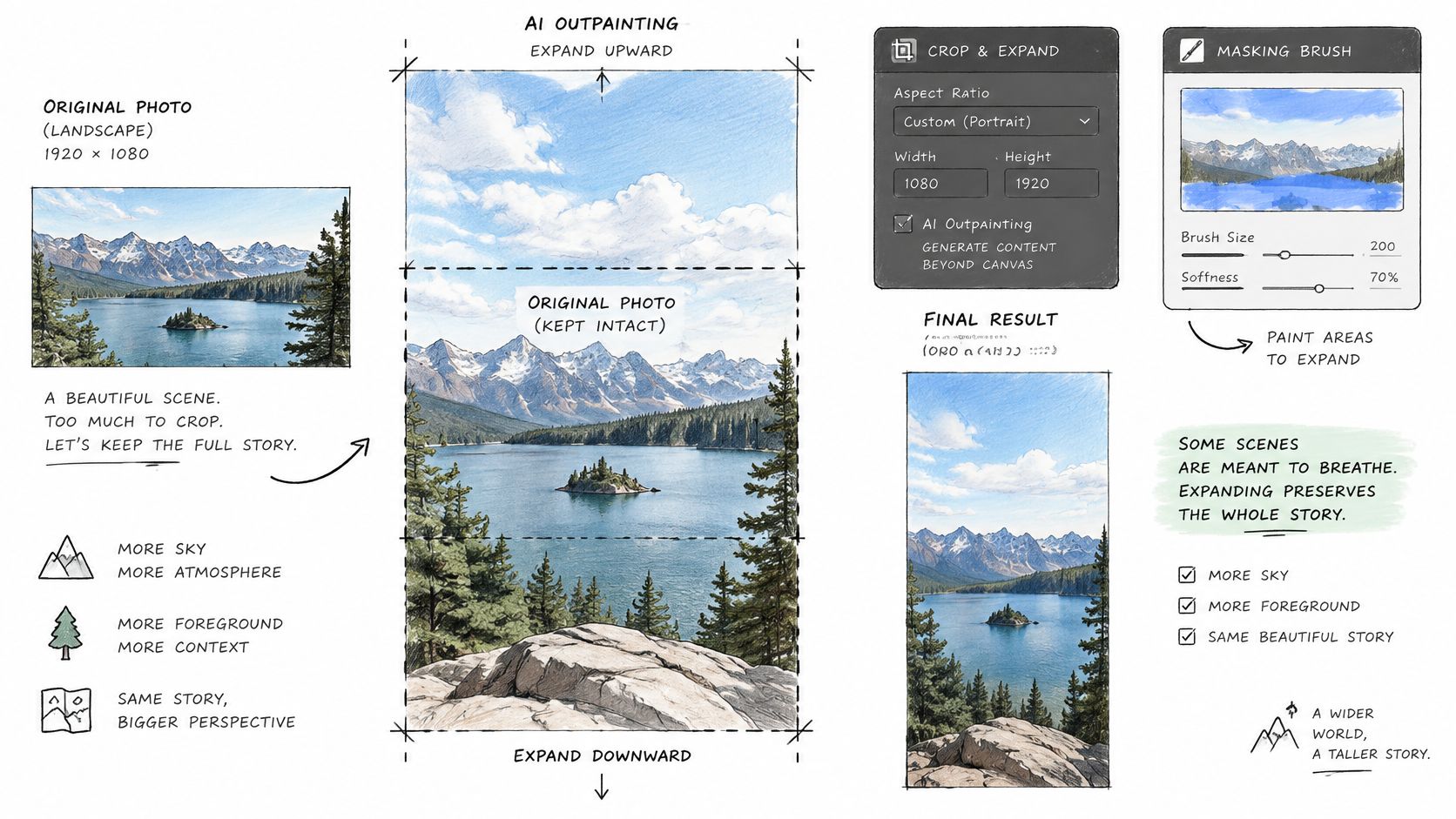
Mask first, prompt second
Expand the canvas vertically to your target ratio and mask only the new top and bottom regions. The original pixels stay locked. Then write a prompt that describes geometry and lighting rather than asking for new foreground subjects, for example, "continue the overcast sky, matching horizon height, lens perspective, color, and grain." A model like Google's Nano Banana 2 Edit through our unified API is built for this kind of targeted edit, but the mask discipline matters more than the model name.
Generate at least four seeds and compare them before you choose. Reject any candidate with duplicated structures or inconsistent perspective, even if the seam looks clean at a glance.
This walkthrough shows the expansion and prompt workflow in motion.
Keep the generated share small
Current research in an outpainting study evaluating expansion ratios from 200% to 600% judges quality with FID, patch-level FID, and CLIP-based similarity metrics, globally and locally, because big generated regions fail in ways a quick look misses. The larger the synthetic share of your final image, the more room the model has to hallucinate. Keep the expansion modest whenever you can.
For commercial work, record the original file, mask, prompt, model identifier, seed, and review status so anyone can reproduce the result later. Adobe's workflow supports the same discipline, letting you enter exact canvas dimensions, choose an aspect ratio, and prompt only the newly created area.
Checking an AI-Extended Image Before You Publish
An extension can still be the wrong one. Generation doesn't reposition existing pixels; it invents new surroundings, so your job after generating is closer to fact-checking than to retouching.
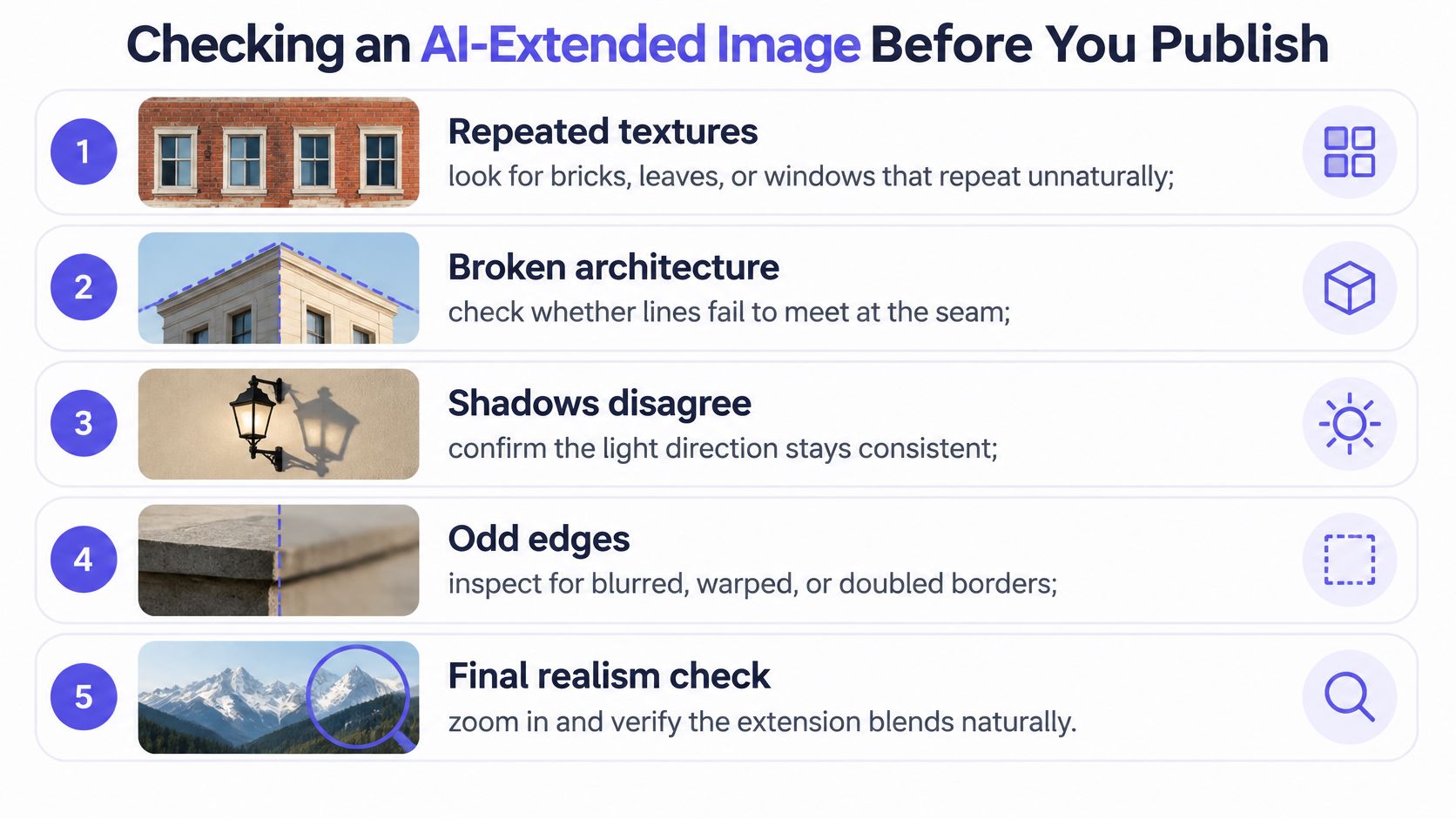
Work through this checklist at full zoom, seam by seam:
- Repeated textures: Bricks, leaves, and windows that repeat in a pattern your eye catches before your brain does.
- Broken architecture: Roof lines, shelves, and door frames that fail to meet where old pixels end and new ones begin.
- Shadows that disagree: New shading that points away from the light source established in the original.
- A horizon that bends: Even a slight wobble at the join gives the edit away.
- Altered text or signage: Letters that dissolve into plausible shapes that spell nothing.
- Faces and hands near the edge: The details viewers scrutinize first and models handle worst.
Risk by subject
| Subject | Risk Level | Check First |
|---|---|---|
| Sky or open water | Low | Horizon and cloud continuity at the seam |
| Plain wall | Low | Straight lines and shadow direction |
| Foliage or repeated bricks | High | Repeated textures and seam symmetry |
| Crowd or group | High | Faces and hands at the crop edge |
| Building or architecture | High | Broken lines and perspective |
| Artwork or signage | High | Altered text and shapes |
| Labeled product | High | Label text must match the original |
Skies and plain walls forgive a lot. Crowds, foliage, buildings, artwork, and labeled products don't, as the landscape to portrait conversion guidance on AI expansion quality control sets out when it separates faithful layout adaptation from synthetic content. Compare your result against the original, export the generated version as a separate file, and label materially invented areas when accuracy matters to your audience.
For product and news images, semantic fidelity beats edge-to-edge fill. A boxed-in photo with honest margins is a better conversion than a full-bleed one with an invented label. Keep that standard whether you extend with a desktop tool or an editing model like Qwen Image 2 Edit.
Finish in the right order. Many models only generate fixed portrait sizes, so generate at a supported ratio first, then make the exact-pixel crop or padding in your editor. Validate again after that final step, because the last crop can expose a seam you already approved.
If you're converting images at any volume, you shouldn't need a separate account and balance for every editing model you want to test. We run an AI inference marketplace at UberLLM where one API key and one prepaid balance cover image generation and editing alongside text, video, music, and speech models, with requests routed to available sellers and failed generations not charged. Bring your next wide image to portrait batch, compare editing models in the playground before you commit, and keep the workflow that survives your own checklist.